
How to Create DO from DI
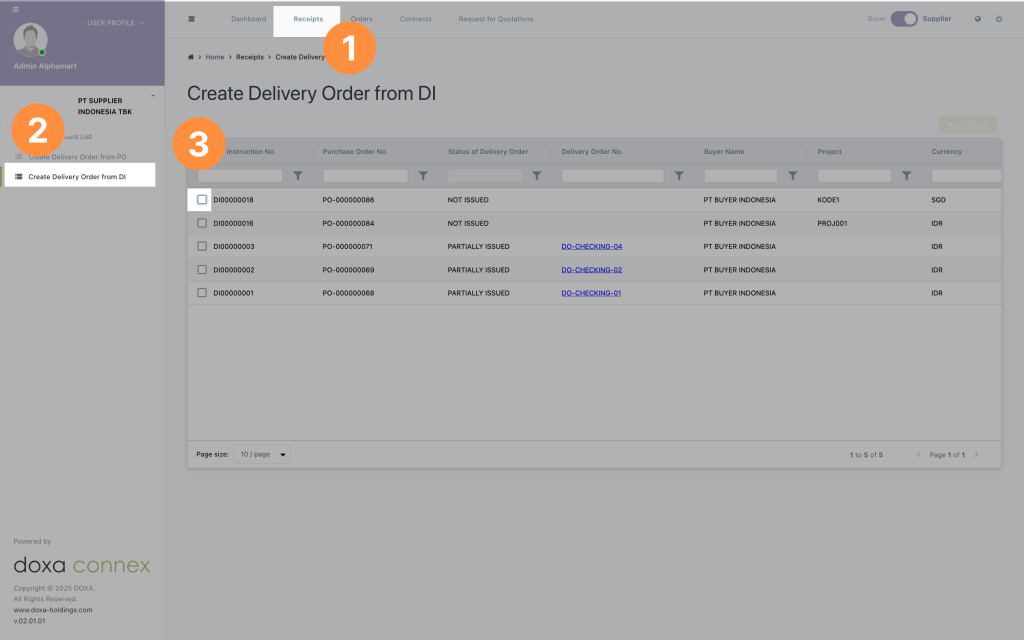
- Click on Receipts on the top menu
- Click on Create Delivery Order from DI
- Select a record by clicking on the checkbox
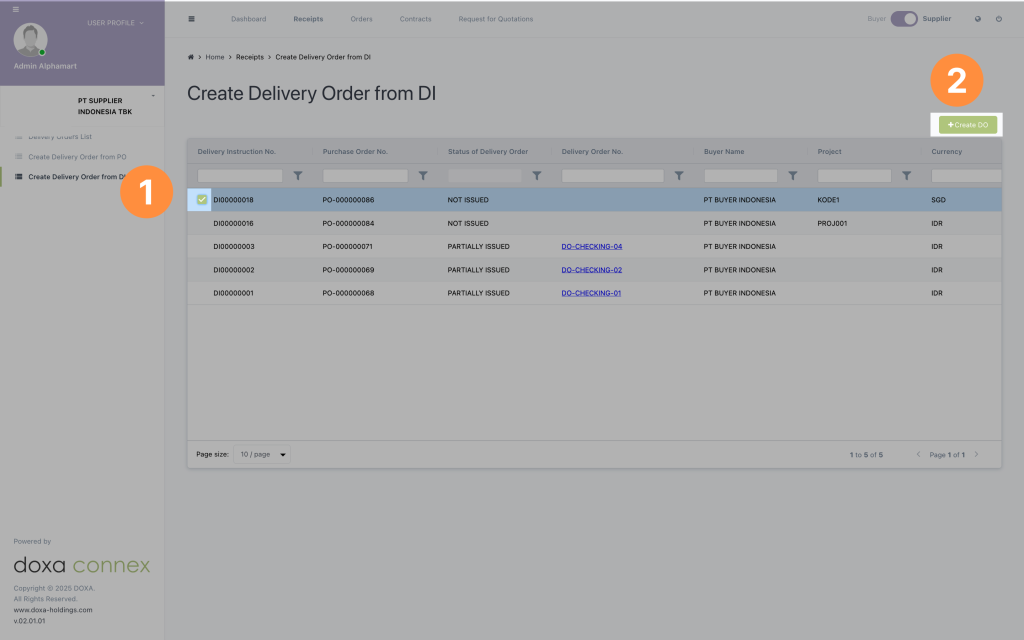
- Selected record will be highlighted
- Click on create DO
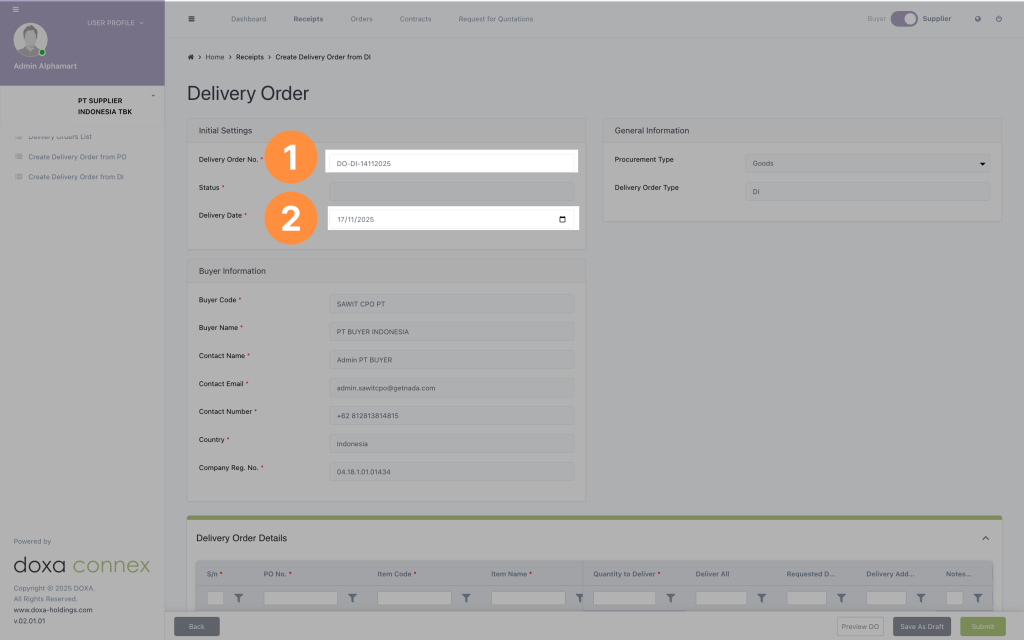
- Key in the Delivery Order Number
- Key in the delivery date
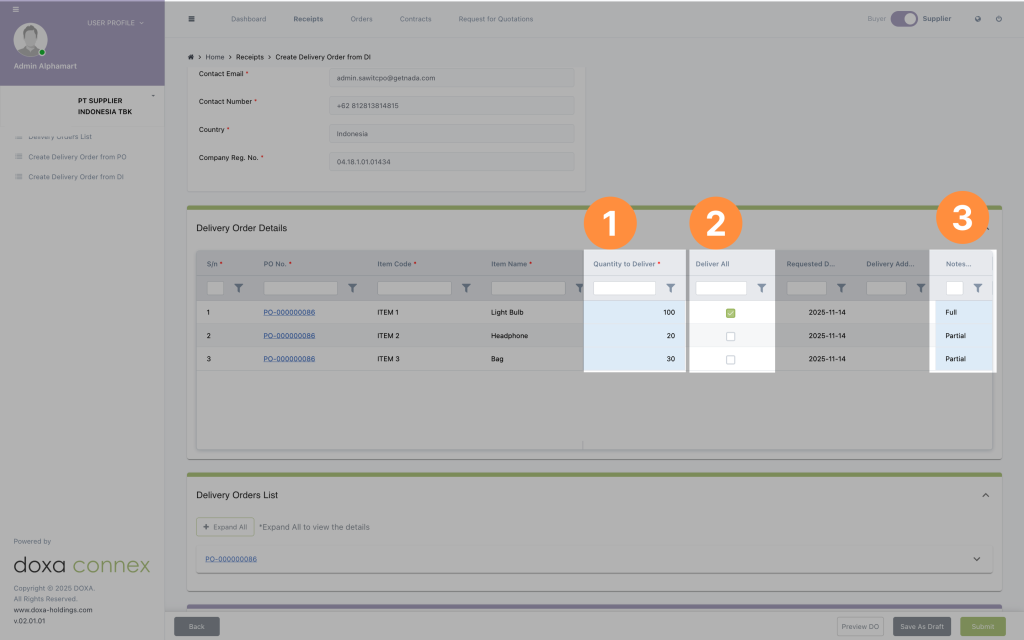
- Key in the number of item to be delivered
- Click the checkbox to deliver All
- Add notes if needed.

Using the scrollbar to scroll to the right, you will be able to see:
PO Quantity: Qty from the PO issued to supplier
DI Quantity: Qty from the DI issued to supplier
Total Qty Converted: Qty based on the DO/(s) created by the Supplier
Total Qty Rejected: The difference between all DO issued (by supplier to buyer) and all GR created from DO (by buyer)
Total Qty Received: Qty buyer created GR on the DO issued by the supplier
Qty Pending Delivery: Remaining qty pending for delivery
To Convert: This is from DO issued by supplier -- "To Convert" field
Deliver All: Ticked when all DI qty issued by supplier.
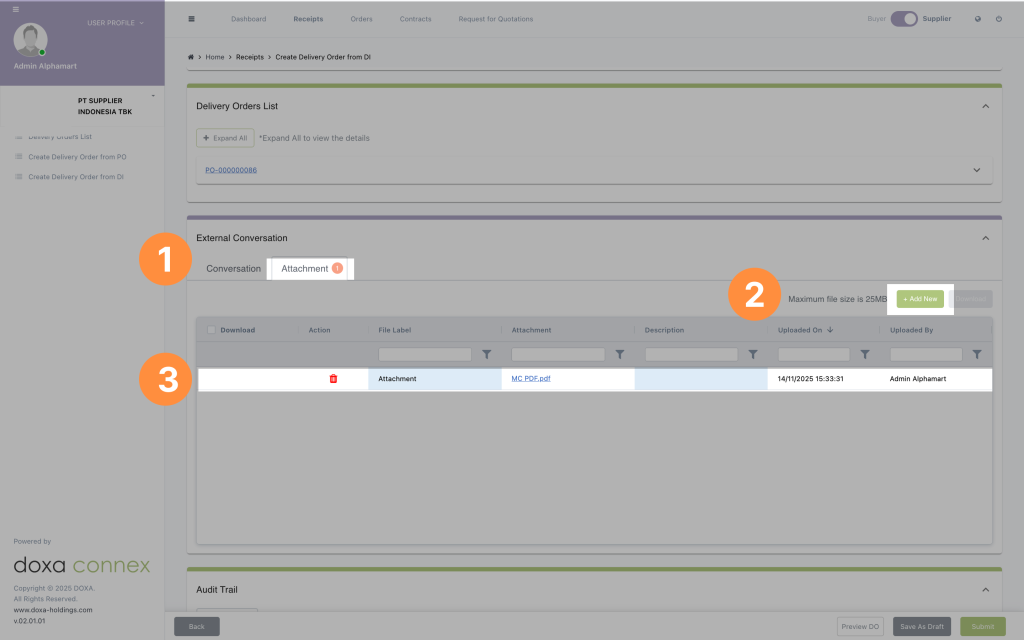
- Attachment can be added in the external conversation
- Click on +Add new to upload the new attachment
- You can delete or manage the attachment in the table
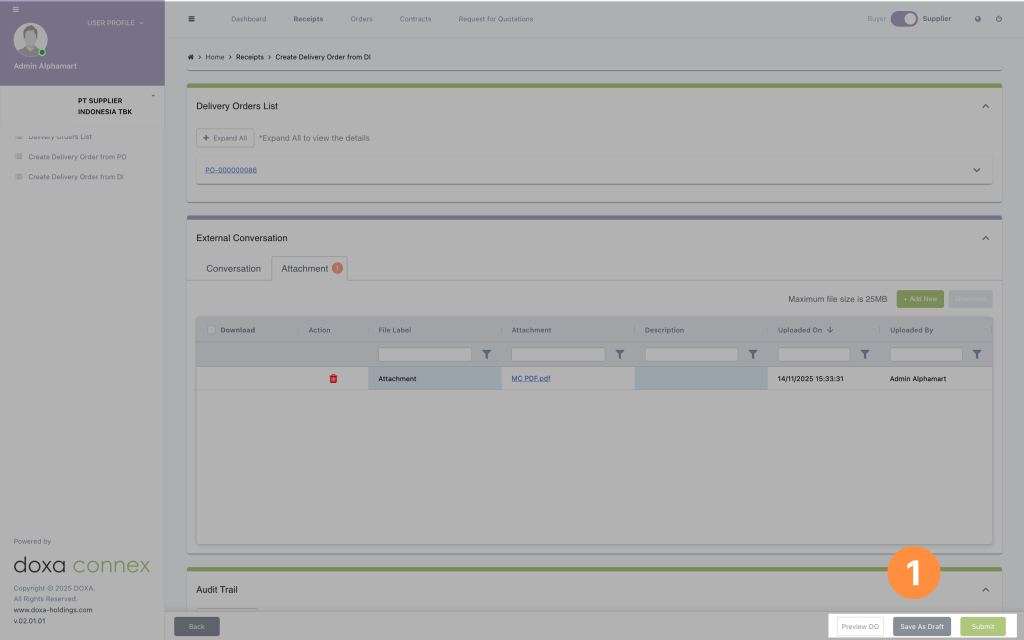
You will be able to:
- Preview the DO
- Saved the DO as a draft and edit it later
- Submit the DO
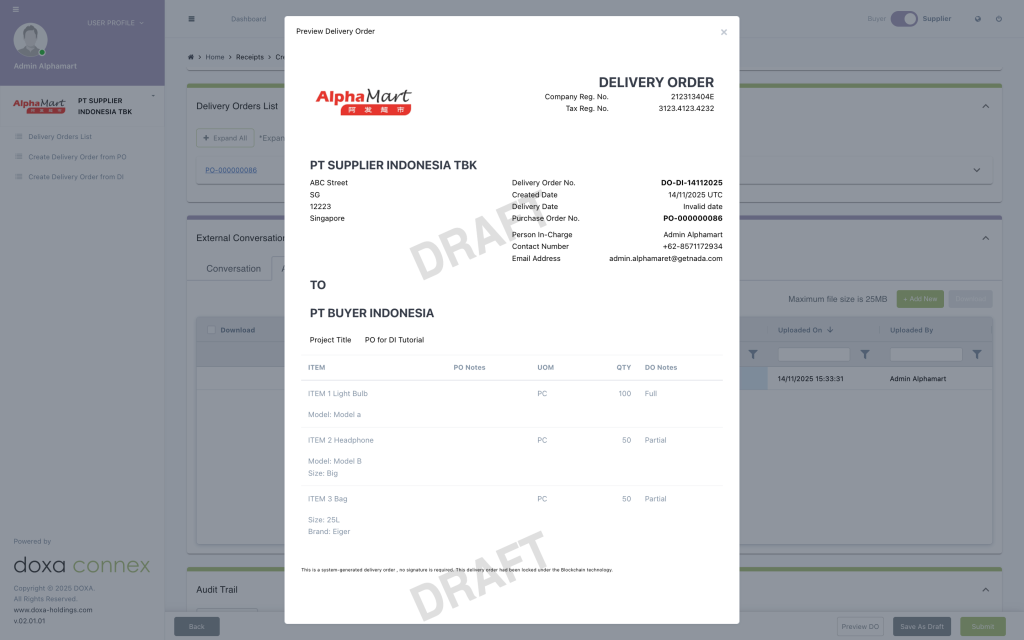
Delivery Order preview example can be seen above.
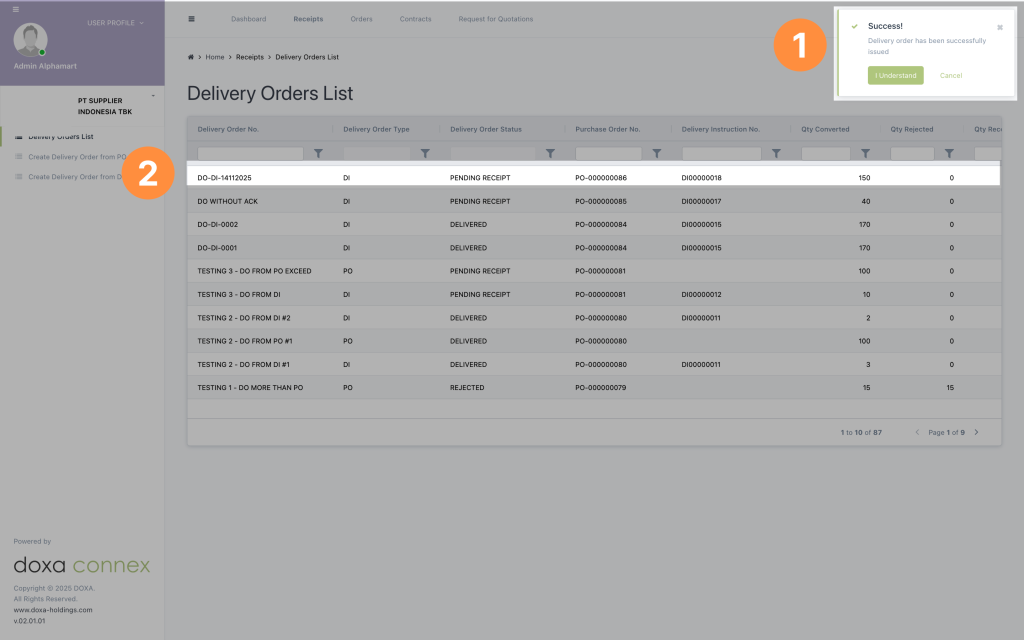
- Once submitted a pop up will be shown in the top right corner
- Submitted DO will be added in the list.