
1025
How to Create Payment Batch

Click Payments
Click Approved Payment List

Select the Payment/(s) which user wants to create Payment Batch – of same currency
Click Create Payment Batch

A: General Information
Input Payment Batch Reference No
B: Payment Details
Payment Method: Select Payment Method under dropdown
Payment Release Date: Select date using the calendar icon/input date
Remarks (if required)
Please visit the end of the section for more details on the payment methods.
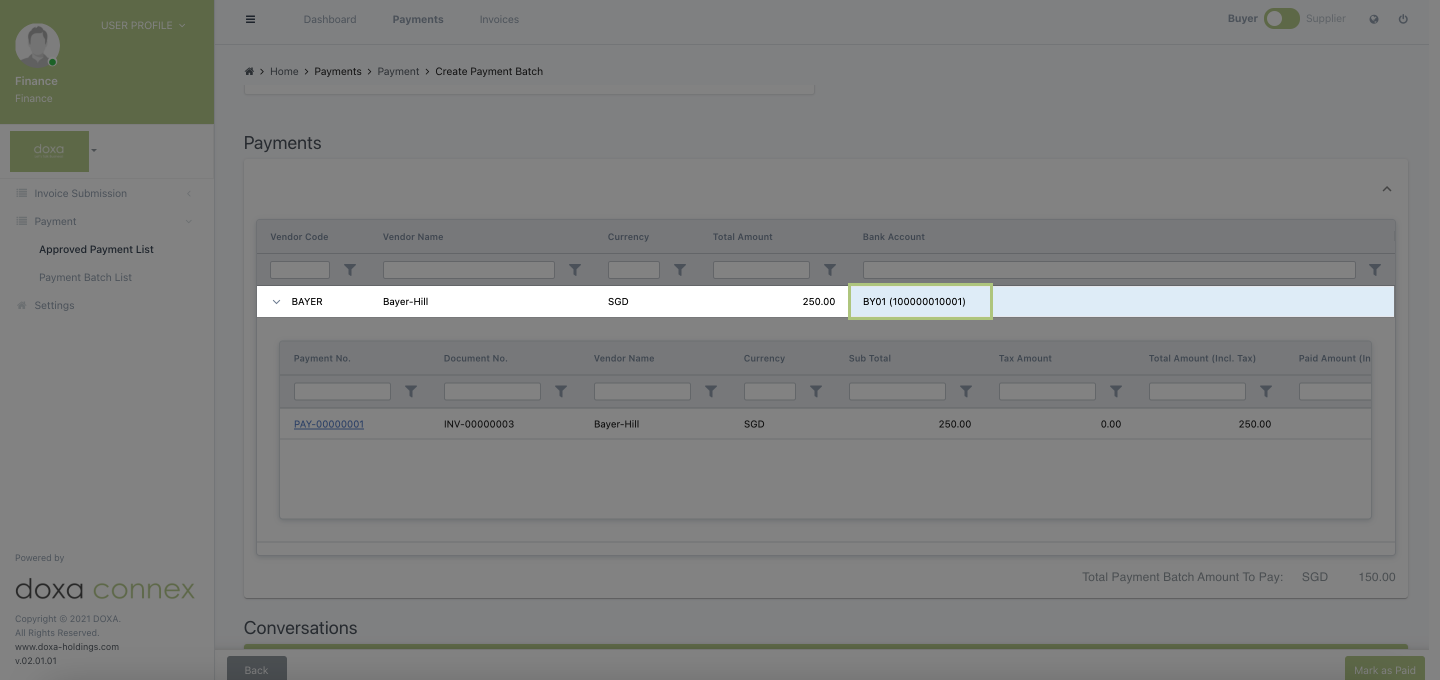
Bank Account: Supplier’s Bank Account will be auto selected

To view Payment Details, click the arrow to expand down
User can view the Payment by clicking on the hyperlink
User must be given the “Read” permission for Payment in Feature Matrix under Entity Management

Click Back to go back to create Payment Batch

Click Mark as Paid to create the Payment Batch

Once the Payment Batch has been created, there will be a notification to inform the user that the Payment Batch has been successfully created. User can click “I Understand” or “Cancel”.
The status of the Payment is “PAID”

Payment Method – Cash
Payment Method: Select Cash under the dropdown

Payment Method – Cheque
Payment Method: Select Cheque under the dropdown
Cheque Number: Enter Cheque Number

Payment Method – Integrated Bank Transfer (under construction)
Payment Method: Select Integrated Bank Transfer under the dropdown
Bank Account: Select Bank Account under the dropdown
Bank Integration Product: Select Bank Integration Product under the dropdown
Bank Name, Bank Account No, Bank Account Holder, Bank Branch, Swift Code – auto populated upon selecting the Bank Account
Execution Date: Select date using the calendar icon/input date
Notification Email List: Select user under the dropdown

Payment Method – Manual Bank Transfer
Payment Method: Select Manual Bank Transfer under dropdown
Bank Account: Select Bank Account under the dropdown
Bank Name, Bank Account No, Bank Account Holder, Bank Branch, Swift Code – auto populated upon selecting the Bank Account
Input the Payment Release Date (required field)