
1015
How to Create Goods Receipt (GR) from Delivery Order (DO)

Click Receipts
Click Create Receipt from DO

Select the DO you wish create GR
Click +Create Goods Receipt

Input Delivery Date
Select Approval Route
Approval Route will be automatically populated once Approval Route is selected
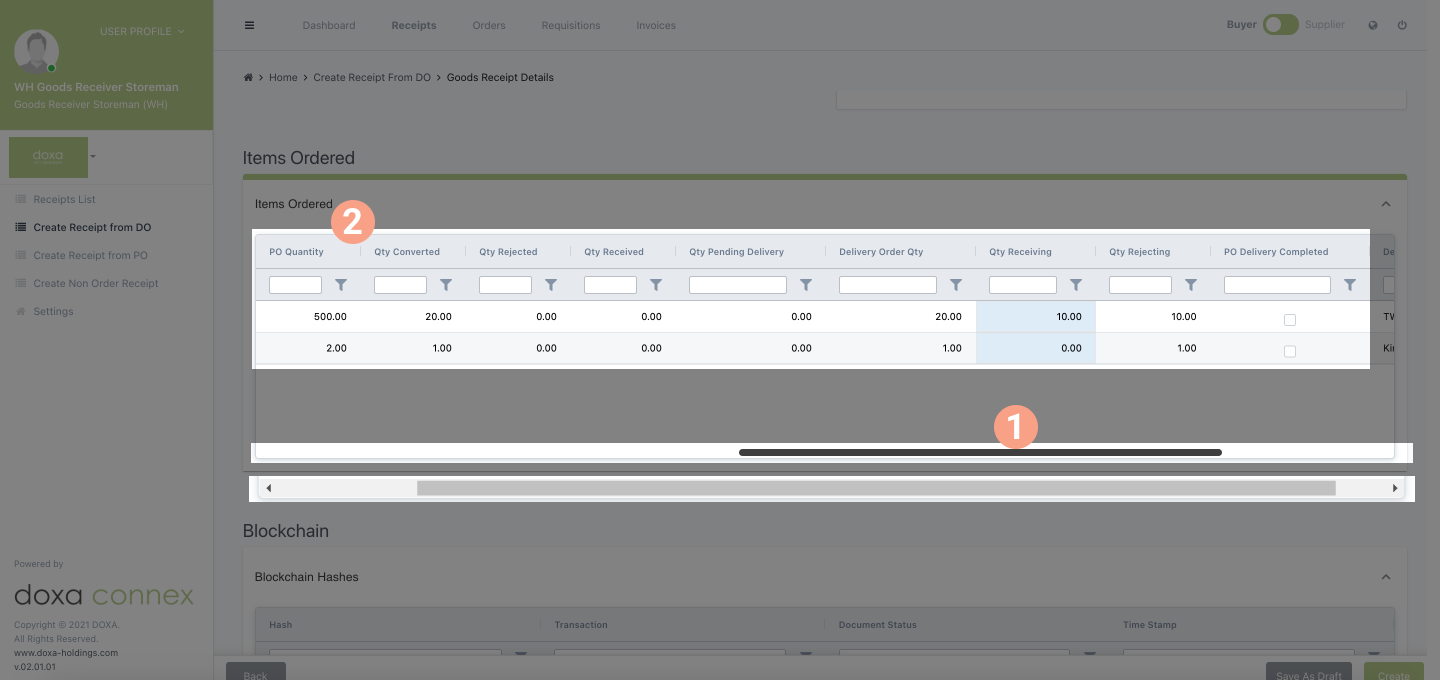
Using the scrollbar to scroll to the right, you will be able to see:
PO Quantity: Qty from the PO issued to supplier
Qty Converted: Qty based on the DO/(s) created by the Supplier
PO Qty Rejected: The difference between all DO issued (by supplier to buyer) and all GR created from DO (by buyer)
PO Qty Received: Qty buyer created GR on the DO issued by the supplier
Qty Pending Delivery: Remaining qty pending for delivery
Delivery Order Qty: This is from DO issued by supplier -- "To Convert" field
Qty Receiving: Qty must not be more than Delivery Order Qty
Qty Rejecting: Delivery Order Qty – Qty Receiving
PO Delivery Completed: Will be ticked when Qty Received + Qty Receiving = PO Qty

Input quantity received for this DO under Qty Receiving

Input Comments on Delivery (if required)
Click Choose File under Add Attachment (optional - if buyer wish to attach supporting documents for reason of input the qty received)

Input conversation/attachment (if required) and click Send button
Conversations
Internal Conversations: this is for internal users eg: to GR approver
External Conversations: this is for external users eg: to supplier

You can click Create or Save As Draft

Save as Draft
If clicked Save As Draft, there will be a notification to inform the user that GR has been successfully saved. User can click “I Understand” or “Cancel”.
The status of GR will be PENDING SUBMISSION.

When you are ready to submit the draft, click into the GR again.
At this stage, you still can edit these details:
- Qty Receiving
- Comments on Delivery
- Add Attachment

To Submit the Saved Draft, click Submit to submit the GR

Once GR is submitted, there will be a notification to inform the user that GR has been successfully submitted. User can click “I Understand” or “Cancel”.
The status of the GR will be “PENDING APPROVAL”

Create & Submit
If you click Create, the GR will be created

Once GR is created, there will be a notification to inform the user that GR has been successfully submitted. User can click “I Understand” or “Cancel”.
The status of the GR will be “PENDING APPROVAL”.